
First steps · Spider workflow
Make your first track online.
New to Spider? Open your browser, click a beat, drag a bassline, tap in chords and turn the loop into a song. Step by step, with nothing to install.
For beginners
Before you start
- 01Open the studio
Open Studio Flow in your browser. There is nothing to install, and you don’t need an account for your first session.
- 02Turn on the sound
Browsers keep audio off until you click. If Spider asks, press Enable Audio once.
- 03Follow the guide
The first time you open Spider, a short tour explains every button in the toolbar. Skip it if you like; Guide brings it back.
The screen
Two rows of controls, five views.
The five buttons on the left switch the whole screen, and the transport in the middle is always there. Your project is the same in every view.
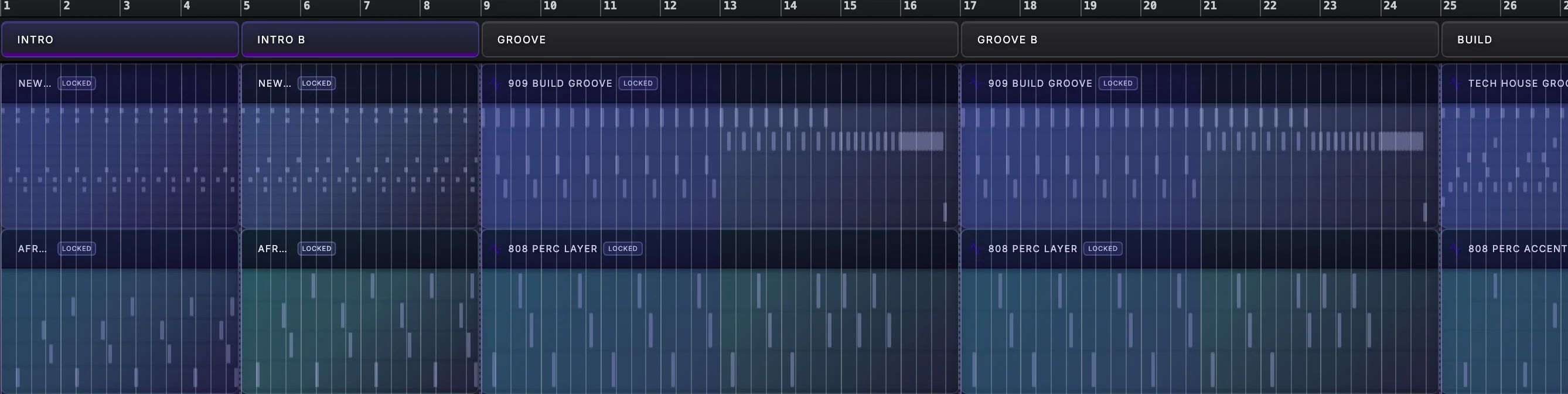
- Arrangement The whole song on a timeline: Parts, clips and automation.
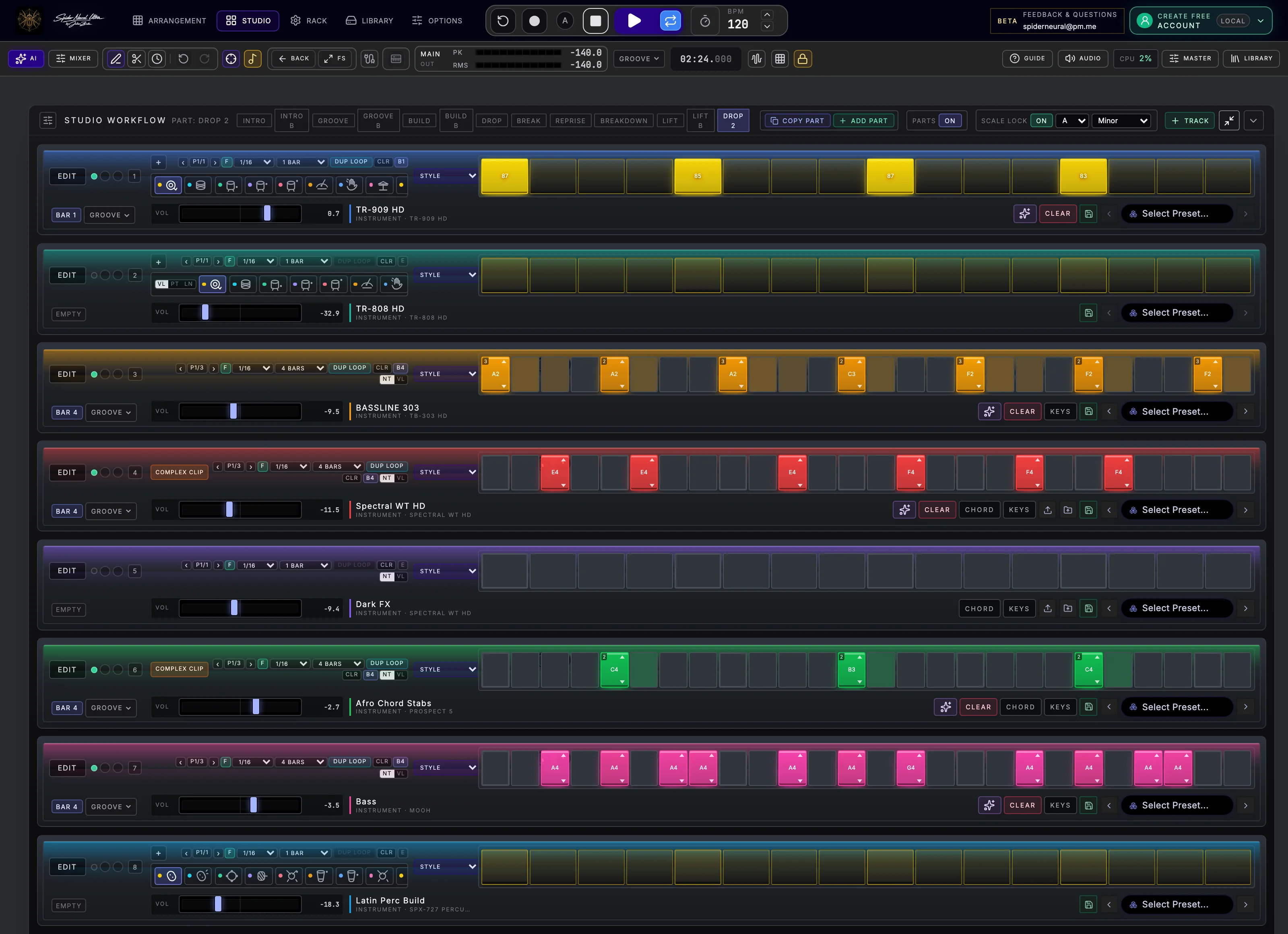
- Studio Step sequencers for every track, and all the instruments.
- Rack The full mixer: channel strips, effects, returns and master.
- Library Your projects, samples, presets and MIDI files.
- Options Audio, MIDI, collaboration, Spider AI and account settings.

Move 1
Click a beat.
In Studio, find a TR-909 or TR-808 row and click the steps where a hit should land. Press Play and it loops.
- Change the loudness Drag a hit up or down in the instrument’s sequencer to set its velocity.
- On iPad Tap a step to switch it on or off.

Move 2
Drag a bassline.
Add a bass track, click a rhythm, then drag each step up or down. Choose a key first and Scale Lock keeps every note in it.
- Change a note’s length Drag its right edge. On iPad, hold the step until it is selected, then slide sideways.
- Change its velocity Switch from Note to Vel and drag.

Move 3
Tap in chords.
On a poly synth such as Spectral WT HD, JULO-60 or Prospect 5, switch on Chord and pick a chord from your key. Then tap a step.
- Add movement Turn on the arpeggiator to break a held chord into a pattern. It works on every melodic instrument.

Move 4
Turn the loop into a song.
Press Copy Part and change one layer: fewer drums for an intro, a new bass rhythm for the drop. Then open Arrangement, where your Parts already sit on the timeline.
- Play or Loop Play runs the whole song once. The small Loop button repeats the current Part.
- Empty section Add Part starts a new one from nothing.
Next
Play it in, balance it, keep it.
- Play your own notes Use a MIDI keyboard, your computer keyboard or the on-screen keys, and record into the Part.
- Balance the mix Open Mixer. Spider’s instruments start at a matched level, so begin with faders and pan.
- Keep your work Save locally, download a portable .snu project, and export a WAV or MP3. A free account adds cloud projects.